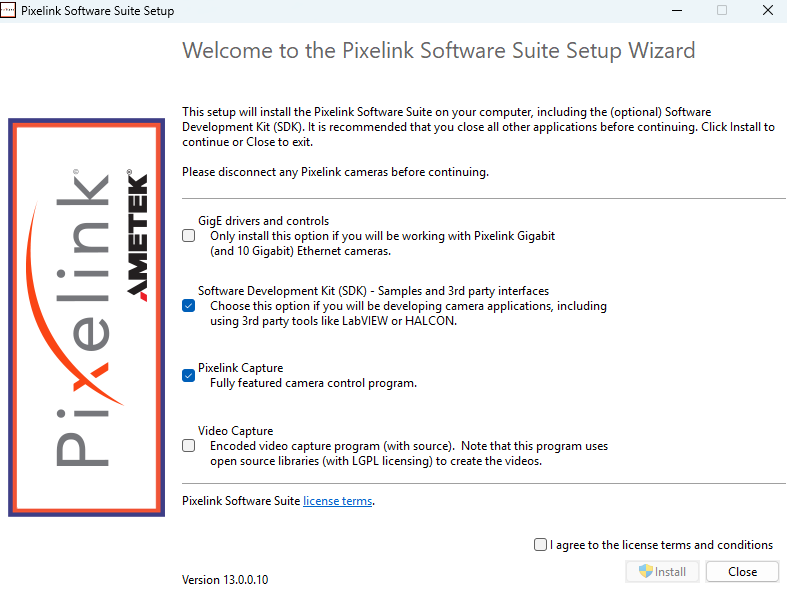
As of Release 13, Pixelink Capture and the Pixelink SDK for Windows are installed using the Pixelink Software Suite installer.
Installation Instructions
1. Disconnect all Pixelink cameras from your PC
2. Uninstall any existing Pixelink software (Pixelink Capture, the Pixelink SDK, or Pixelink uScope)
3. Run the Pixelink_Software.exe installer
4. Select the components you wish to install by enabling the appropriate checkbox (See Installation Options below)
5. Enable the "I agree to the license terms and conditions" checkbox
6. Click "Install". You must use an account with Admin permissions.
Installation Options
The installer has 4 optional components, which are explained below. We recommend that most users enable the Pixelink Capture option. If you do not enable any options, then only the Pixelink camera drivers will be installed.
1. GigE Drivers and Controls: If you are using a PL-B GigE or PL-X series camera, then you must enable this option for your camera to work. If you are using any other camera, then this is not required.
2. Software Development Kit (SDK): If you are planning to develop your own applications, then you should enable this option. Please note that as of Release 13, our SDK no longer requires a license key or fee.
3. Pixelink Capture: This is our standard camera control software and we recommend that most users enable this option.
4. Video Capture: This will install an additional video capture app created with open-source libraries. As of Release 13, encoded video capture is no longer included in our Pixelink Capture software. If you want to record encoded video, you should enable this option.